How to Make YouTube Videos Play Automatically in Google Chrome
General
- 22 Jan 26
To ensure YouTube videos play automatically when a page is opened, Google Chrome must allow audio playback. If the Sound permission is blocked, Chrome may prevent videos from starting automatically.
Follow the steps below to allow sound for YouTube so autoplay works correctly.
Enable Sound Permission for YouTube
- Click the three-dot menu (⋮) in Google Chrome.
- Open Settings.
- Go to Privacy and security.
- Click Site settings.
- Under Recent activity, select www.youtube.com.
- In the Permissions section, locate Sound.
- Change the setting to Allow.
- Reload the YouTube page.
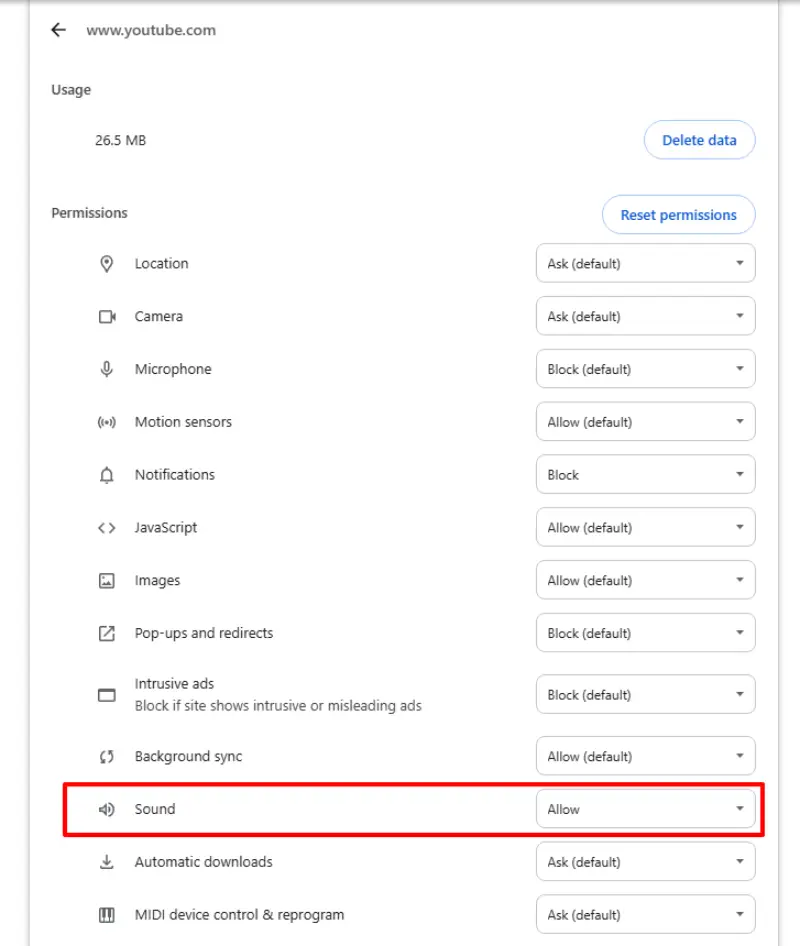
If YouTube Does Not Appear in Recent Activity
If www.youtube.com is not listed, open the following link directly in the Chrome address bar:
chrome://settings/content/siteDetails?site=https%3A%2F%2Fwww.youtube.com%2F
Then:
- Find Sound under Permissions.
- Set it to Allow.
- Refresh the page.
Important Information
- Chrome may block autoplay if audio playback is not allowed.
- Allowing Sound helps ensure videos start automatically.
- Changes take effect immediately after refreshing the page.
After enabling this setting, YouTube videos should play automatically when accessed.
Related content
How ViewGrip Works
How to Create a Campaign: A Step-by-Step Guide
How to start using the worker feature to get unlimited coins